AI object replacer for photos

Replace an object, remove a distraction or redraw part of a photo. Brush over the area and describe the change, with an optional reference image to guide the result.

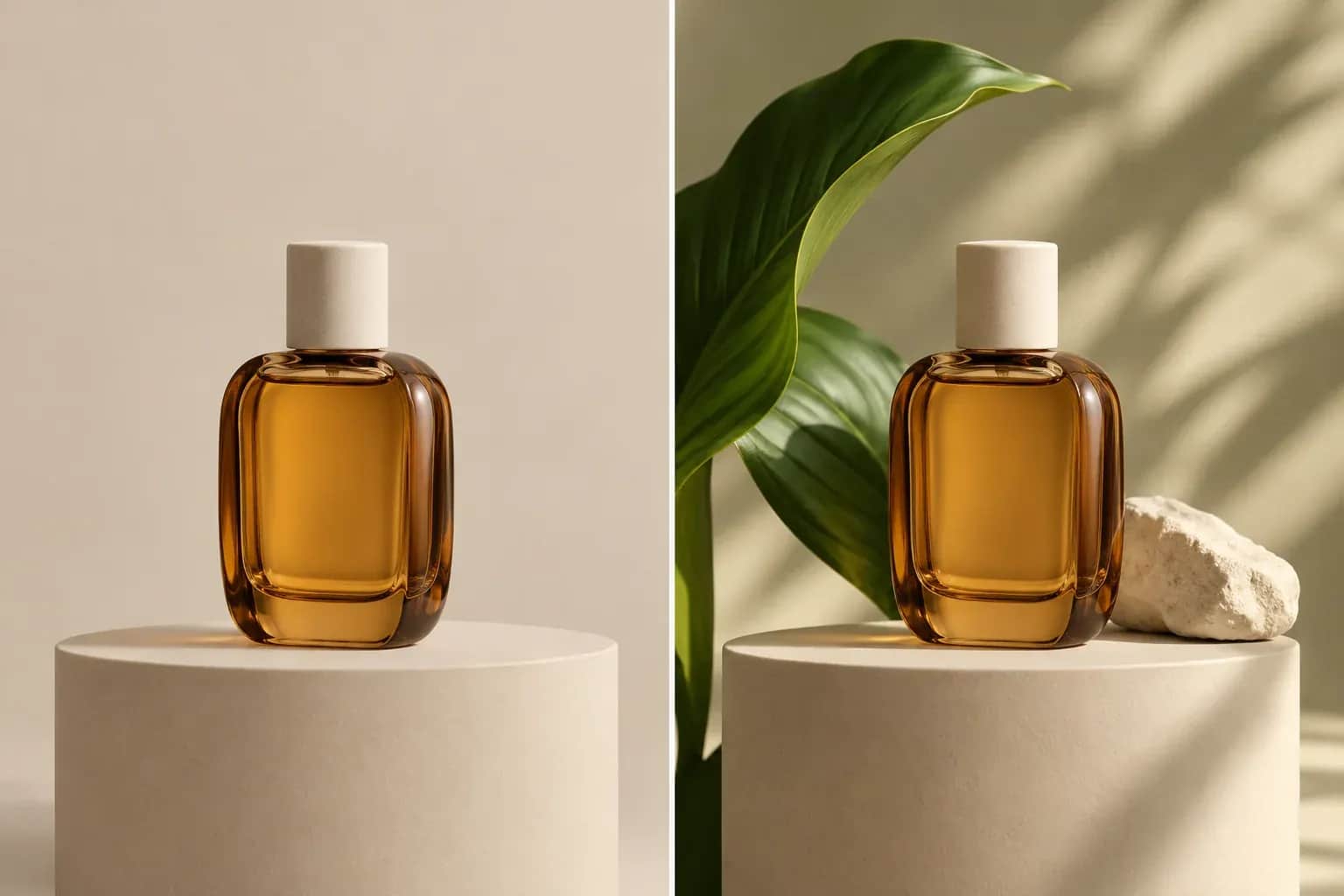
Perfume bottle before and after adding a leafy product setting

or drop an image here
JPEG, PNG, WebP

Replace objects in everyday photos

Give a product a new setting, try a different chair or tidy up a favorite travel photo. These before-and-after examples show how changing one part can give an existing image a new use.

Perfume bottle before and after adding a leafy product setting

Refresh your product photos

A plain product shot can become a starting point for a different campaign. Replace the surrounding props with greenery or a seasonal setting while keeping the product as the focus. Here, plants give the perfume image a botanical direction. Review the bottle shape, label and reflections before using an edited version in a listing.
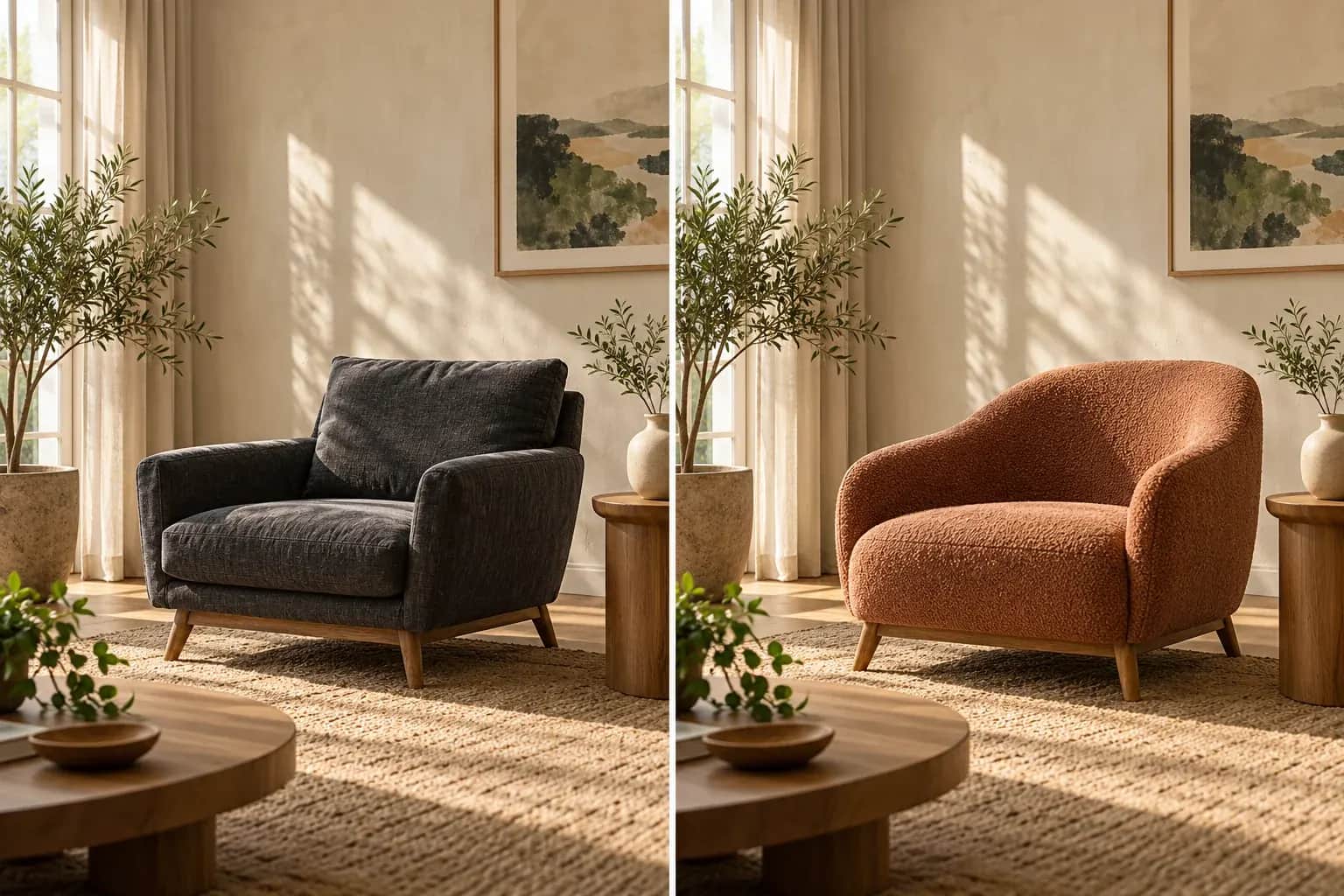
Dark armchair replaced by a terracotta chair in the same room

Preview a new room style

Use a photo of your room to explore a different chair before committing to a design direction. The dark armchair becomes a curved terracotta seat, changing the mood of the corner. This is a visual concept for comparing shapes and materials, not a measurement or a guarantee of how real furniture will fit.

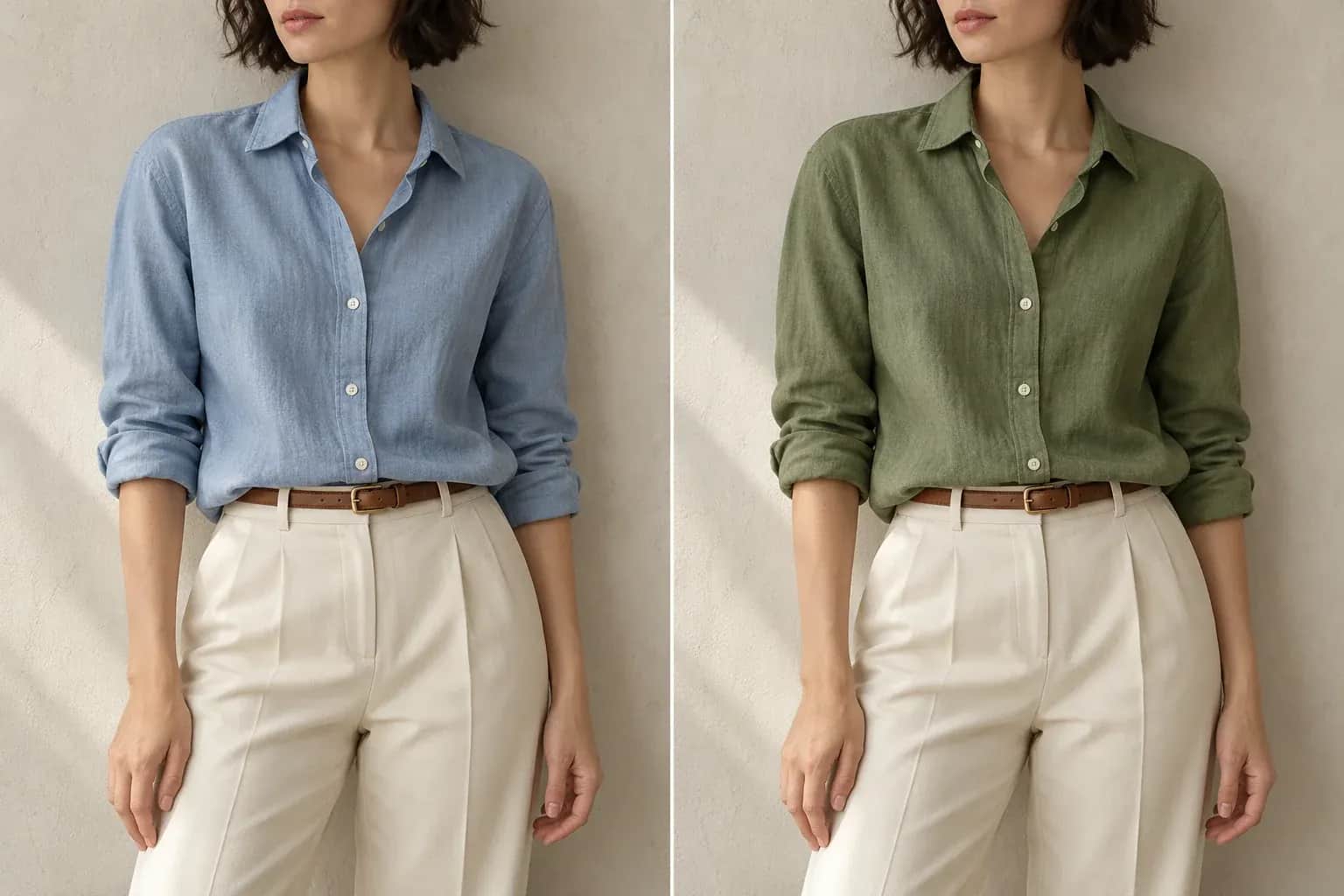
Blue shirt changed to sage green in the same outfit

Try new outfit colors

Try a new clothing color in a photo you already like. This blue shirt becomes sage green, offering another way to combine the outfit with existing trousers and accessories. Use it to plan a shoot or discuss a styling idea. Check skin tones and fabric edges; the result is not an exact color sample.

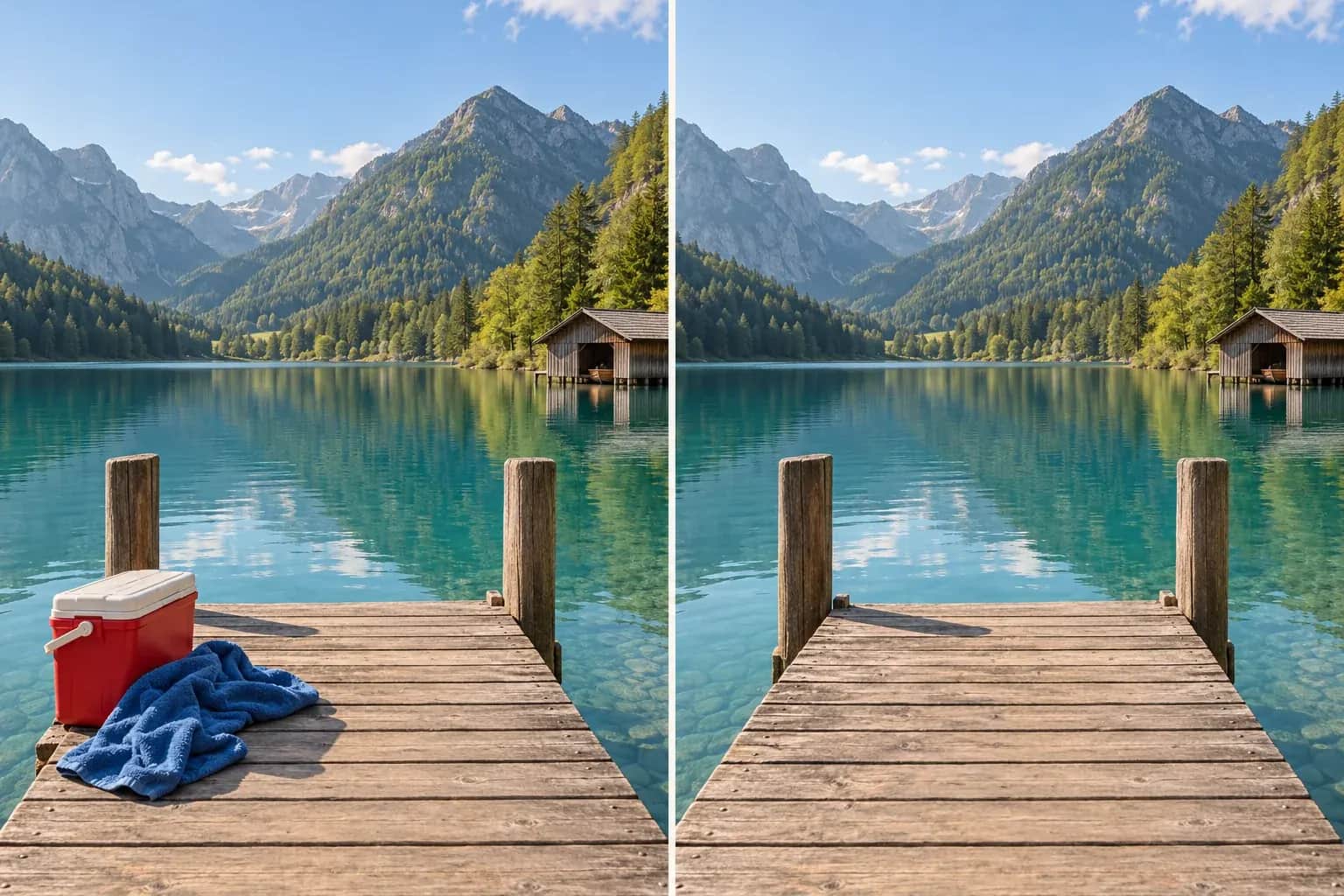
Cooler and towel removed from a lakeside jetty

Clean up your travel photos

A cooler and a towel draw attention away from the lake in this travel photo. Object removal clears the jetty and lets the water and mountains become the focus. Try the same approach for a bag or stray item in a holiday picture, then inspect the rebuilt scenery before sharing or printing it.

How to replace or remove an object

You do not need to learn a complicated editor. Start with one photo and one thing you want to change, then follow these steps.

Choose a photo

Open AIReplace.ai and upload a clear JPEG, PNG or WebP; you can prepare the image and selection before signing in.

Mark and describe the edit

Brush over the object, describe its replacement or removal, then review the credit cost and generate.

Check and download

Compare the result with the original, inspect edges and textures, then download the version you want to keep.

Local photo editing, guided by you

AI Replace is an AI image replacer that lets you edit a selected area with a text prompt and an optional reference image. Explore a new look for an existing photo without learning a complicated editor or planning another shoot.

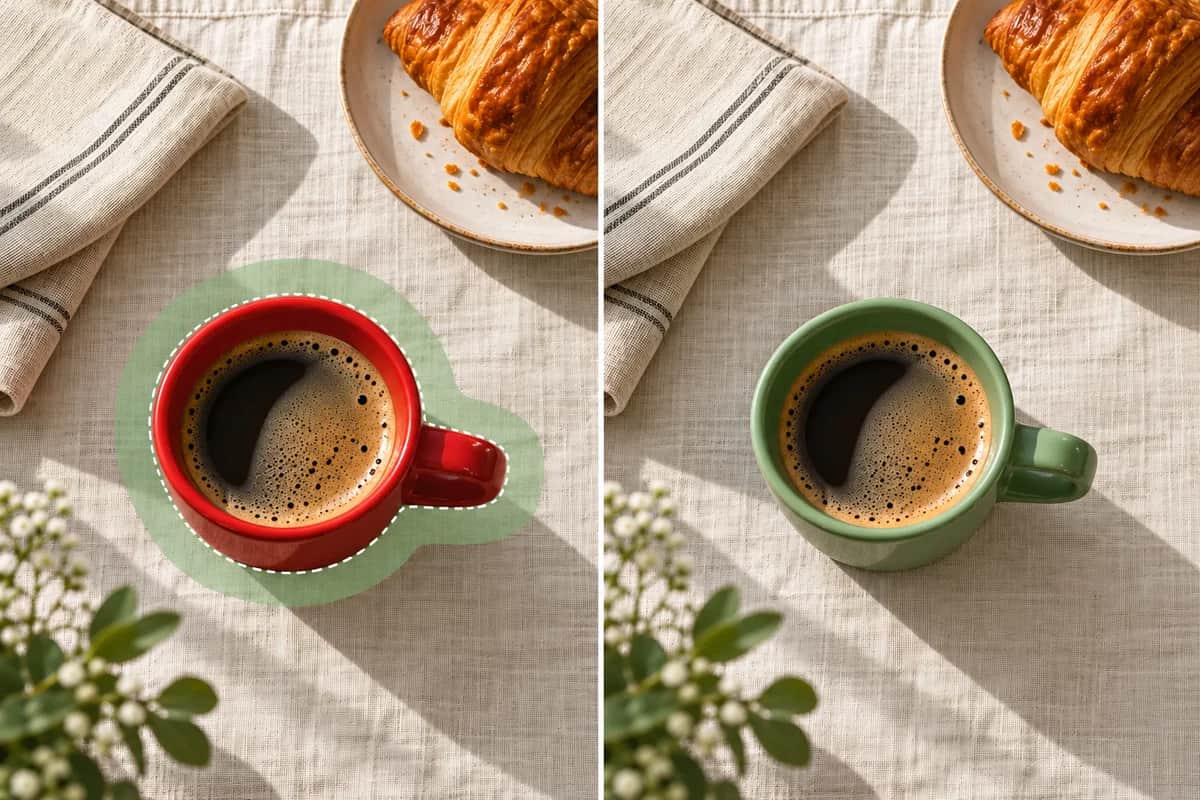
A selected red mug replaced by a green cup on the same linen table

Brush over the area you want to change

A brush selection tells AI where you want to work. Change an object or its color without manually cutting it out and assembling a new composition. Adjust the brush near edges and erase excess selection; surrounding details can still change, so compare the generated image with your original.

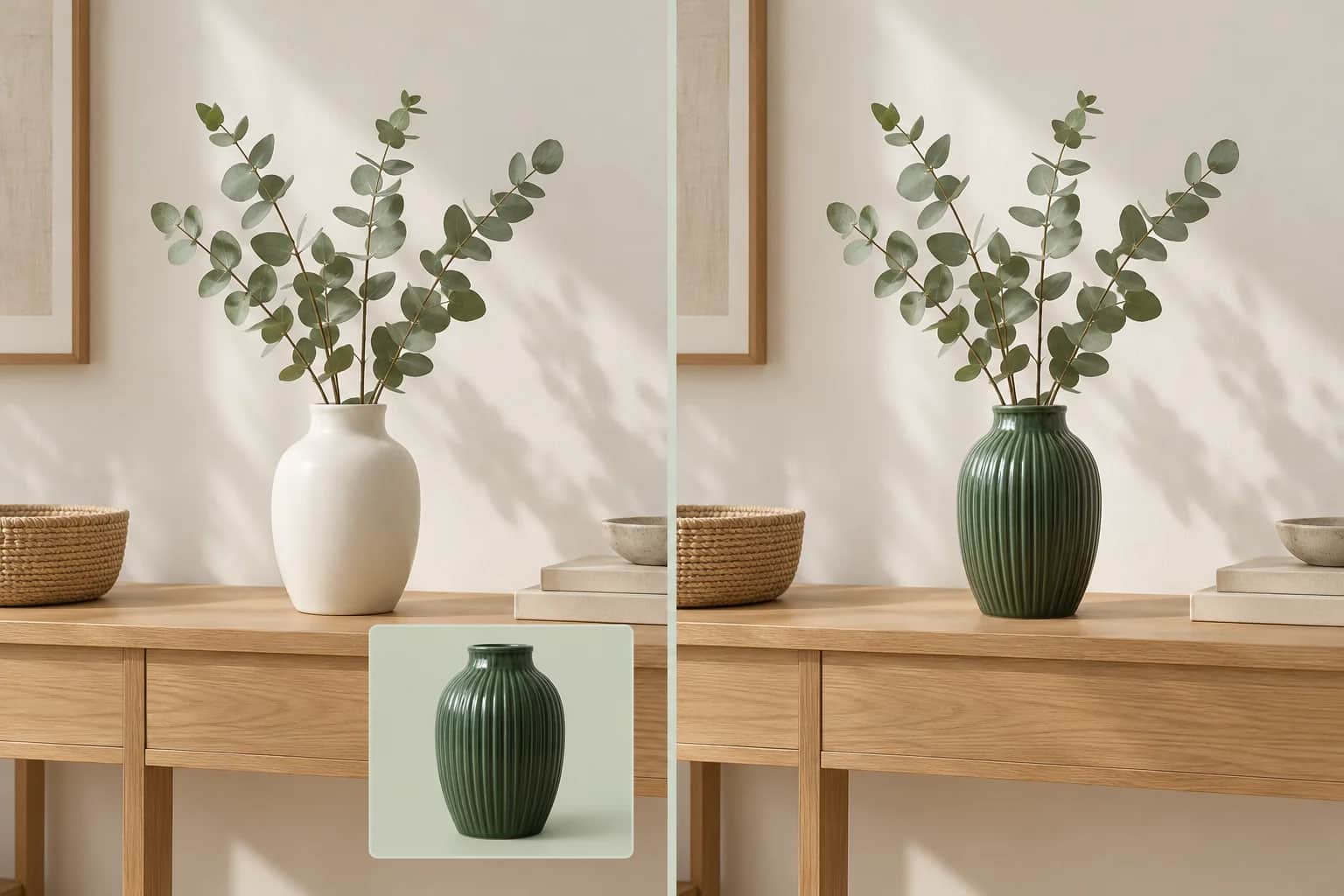
A white vase replaced by a green ribbed vase, with a separate reference inset

Guide the replacement with text and a reference

Describe the shape, material and color you want, then add a reference image when words are not enough. A green ceramic vase, for example, gives a clearer direction than “make it nicer.” The reference guides the replacement; it does not guarantee an exact copy or identical proportions.

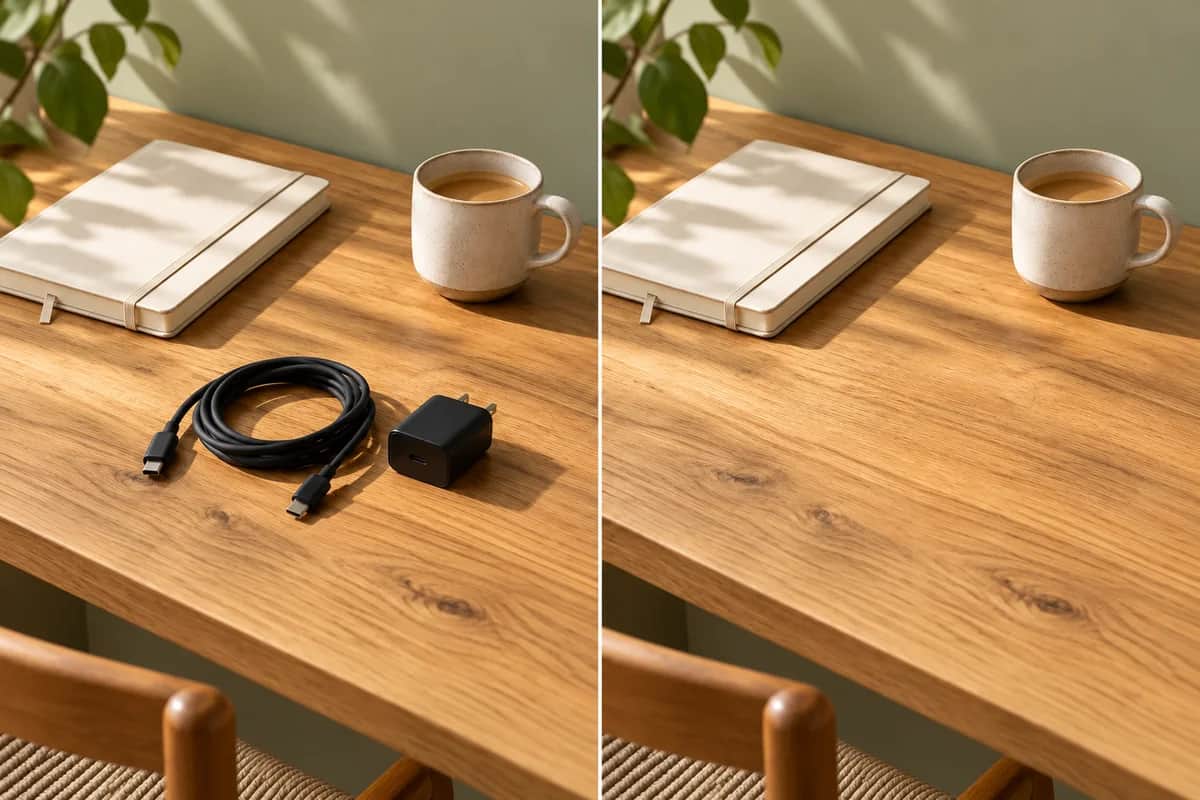
A charging cable and adapter removed from an oak desk while the cup and notebook remain

Remove objects and fill the space

Remove objects from photos by marking the distraction and asking for the surrounding surface to continue. Generative fill can suggest wood grain, wall texture or scenery in the empty space. Check repeated patterns, shadows and edges afterward: the new pixels are an interpretation, not a recovery of what was hidden.

AI object replacer FAQ

Find out how to describe a change, check the cost and save your result before you start editing.

What can an AI object replacer change?

AIReplace.ai supports object replacement, object removal and local inpainting. You can try another piece of furniture, recolor clothing or clear a distraction from a photo. A selection guides the edit but does not lock every unselected pixel. Faces, lettering and nearby details may change; review the whole result before using it.

Which photos work best for object replacement?

Start with a sharp photo where the target is clearly visible and large enough to select. Product photos, room images, outfits and travel scenes are useful starting points. Tiny objects, heavy blur, overlapping subjects and intricate textures make the edit harder to judge. Keep the original and begin with one change at a time.

Which image formats and sizes can I upload?

The picker accepts JPEG, PNG and WebP. There is no fixed file-size or pixel-dimension cap enforced by this homepage picker; browser memory and the generation service can still limit processing. If a large image cannot open or generate, try a smaller copy. Keep your original file separately so you can return to it.

What resolution and file format can I download?

Generation offers 1K and 2K quality options, with the output size based on the canvas aspect ratio. A higher setting does not guarantee sharper recovered detail. Download completed results from the editor or export the current canvas as PNG. Inspect small text and the actual downloaded file before preparing it for print or publishing. Free accounts generate with a watermark; paid account entitlement removes it.

Do I need an account before uploading?

You can choose an image and prepare your edit before signing in. Sign in when you are ready to generate. Refreshing the page clears edits you have not submitted, so keep your original image.

Is AIReplace.ai free, and how do credits work?

New accounts receive 5 trial credits, valid for 30 days. Replacement and removal generation use 3 credits at 1K or 4 at 2K. The Generate button shows the cost before submission, and a new generation uses credits again. See Pricing in the footer for current packages; trial credits are not unlimited free use.

How are my photos stored and deleted?

Images are uploaded for processing when you submit a generation after signing in. You can manage or delete results in your account history. Download anything you want to keep; see the Privacy Policy for storage and deletion details.

What if generation fails or the result looks wrong?

A failed generation returns its consumed credits; a completed result you dislike is a different case. Try a more precise selection and a concrete description, and check the displayed cost before generating again. For a stuck task or a credit problem, contact [email protected] with the task details. See the Refund Policy for purchase refund terms.

Give one photo a useful new version

Start with the object you want to replace or remove, then check the difference.